-
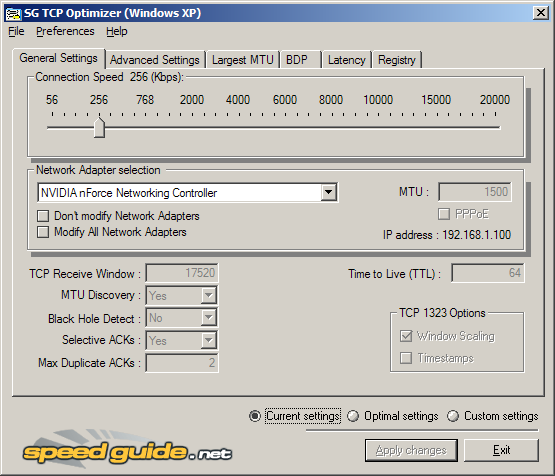
Download SG TCP Optimizer. You don’t need to install it, just double-click and it will run. Once you run it, you should be looking at this :
-
That is quite an intimidating interface, but we won’t be touching most of it. Under the General Settings tab, just drag the slider to match your connection’s download speed. Then, at the bottom of the same window, select the “Optimal Settings” radio button and click “Apply Changes”.
-
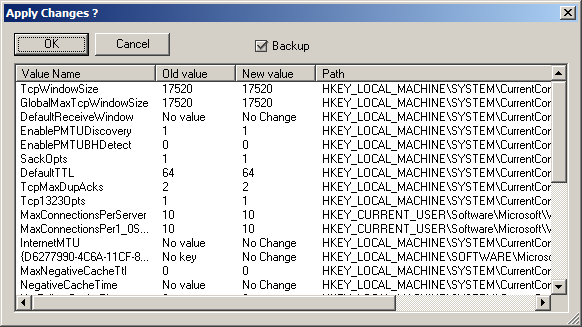
You will now be looking at a window like the one below.
-
Make sure that the “Backup” tick box is ticked and then click OK.
-
All that’s left is to reboot your system, in order to apply the changes. You will be prompted to do so.
-
Once your system has rebooted, surf around for a while. If for whatever reason you feel your connection has been affected negatively, then fear not, for the changes you made can be undone. Start SG TCP Optimizer, click File and choose restore backed up settings. This will bring up a dialog box where you can navigate to where you downloaded the program. There, you will find a file with the extension .spg with a filename containing the date.
For example If you applied the changes on the 21st of February “sg_backup_2008-02-21-xxxx.spg” would be the filename, where the xxxx is any number. Once you find this file select it and press open. This should bring to a dialog box similar to the one shown above. Click OK and reboot. Your original settings are now restored.
There you have it. Your connection is now tweaked and ready to go! Any questions, post a comment!


 Posts
Posts


No comments:
Post a Comment